"Pay attention to the world." -- Susan Sontag
 

Big Blue (and Black and White) Hydrangea Blooms

From 100 Flowers and How They Got Their Names by Diana Wells:

“The big pink or blue garden hydrangea is as common in America as blue-haired old ladies, and has the same feel of dyed unreality.”

From Hydrangeas by Naomi Slade:

“[Many] hydrangeas have a โ€˜preferredโ€™ colour, and they will lean towards this, regardless. Simply, some would rather be … blue….”


I started out assembling photos for this post with this image of two very blue hydrangea blooms. At first I didn’t mind the green leaves behind the petals, but after a while they got on my nerves and the hydrangea bones in the background made me nauseous (exaggeration alert!) … so…

… I removed the background, ending up with two floating flowers…

… and then created five virtual copies in Lightroom so I could crop the blooms as four separate photos at different sizes, plus a fifth large crop (of the first, most symmetrical bloom). Notice that in the fifth image, it’s more apparent that these blue blooms have purple-brushed petals… which is almost always the case with blue flowers of any type.

Side-eye note: These five images demonstrate one of (to me) the best things about shooting raw files, that you can crop out large sections of an image with little or no loss of detail, which is well maintained even after exporting the photos for uploading to a blog or website. As you may know, WordPress blogs compress images and reduce quality slightly; but if you click here to view the last image at full size, you can see that despite selecting only about a third of the image during cropping, it’s full of sharp detail.

Such was my delight at these big blue blooms that I thought it might be fun to do something else to the images.

I passed them in and out of the Nik Collection a few times, and while they looked fine with filters that converted them to sepia tones, or an antique look, or to an old film style, none of those renditions appealed to me that much. Funny how that works: you have an idea you want to do something creative with an image (without necessarily knowing what), and certain things strike you but many do not.

I then took several different approaches to converting them to black and white in Lightroom; and again didn’t like the results at first as they just looked like black and white variations of blue flowers.

Tools like Lightroom and Nik Collection of course provide the potential for endless possibilities and results. Yet I always try to think of that differently, as a way of exploring how we create and how we sense that something we create has reached a satisfactory “end state” — “end state” in itself being an ambiguous condition, never quite answering the question: am I done yet?

Whenever I feel a little stuck, I try two different mental tricks to change the way I’m thinking. First, in Lightroom, I try extreme changes for various exposure and color settings — which basically means moving Lightroom sliders to the far left or far right in different combinations to see what happens. Second, I consider what I usually do to an image, what changes I typically make (we tend to follow similar patterns or processes when creating pretty much anything), and try to break out of that pattern. In my former tech life where part of my job consisted of software quality assurance, such an approach would have been considered exploratory testing of edge cases to try and break the software; in photography post-processing it translates (for me) to experimenting with methods I don’t usually use to see what new potential is exposed.

Black and white conversion in Lightroom is initially a button-push, which typically renders a fairly flat (as in dull) variation of the original image — but many of the same exposure and color options (color in this case meaning the red, orange, yellow, green, aqua, blue, purple, and magenta colors in the original image) are still available. Adjusting the black-and-white renderings of those color channels not only teaches you more about how color is represented in photos, but it can also produce surprising effects. For all five of these images, I discovered that the tiny pin-buttons at the center of each four-petal flower cluster — which initially appeared as dark black dots — actually contained red, orange, and yellow; and increasing those three colors to their highest value (an experiment with “extreming” the settings) changed the overly prominent black dots to white or light gray instead. Before adjusting the red, yellow, and orange, my eye kept getting drawn to the dots; afterward, the dots blended with the rest of the flower and weren’t such a distraction.

In addition to the Sharpening tool, Lightroom has two other tools for enhancing detail: Texture and Clarity. With a black and white image, a bit of extra sharpening (even though I had already applied sharpening to the original color image), adds a little sparkle to highlights around edges without creating jagged traces that you sometimes see in over-sharpened images.

While I use the Texture tool frequently, adding more than was in the color image didn’t have much of an effect. I hardly ever use Clarity to add detail (preferring Texture’s more subtle enhancements instead); but in this case, I broke from my typical approach and played around with Clarity to see what would happen. Lowering clarity reduced detail and produced a uniform softness in the flower petals, while also adding a bit of brightness — and the combination of softness and brightness appears as a bit of glow throughout the blooms. An illusion, perhaps; but your eyes will see what they want to see… or maybe what I, The Photographer, want them to see. Ha!

Finally, I used Color Grading to add a bit of blue color back into the shadows, highlights, and midtones; that produces a light silver effect on whites that I like and, to me, is more appealing than flat white.

The End!

If you read all that, bless you! Treat yourself to some ice cream!


My previous hydrangea posts for 2021 are:

Baby Bluebird … Hydrangeas (1 of 2)

Baby Bluebird … Hydrangeas (2 of 2)

More Bluebird Hydrangeas! (1 of 2)

More Bluebird Hydrangeas! (2 of 2)

Pink Mophead Hydrangeas (Five Variations)

Thanks for reading and taking a look!

Lilies on Black Backgrounds: A Photo Project (1 of 10)

From More Than a Rock: Essays on Art, Creativity, Photography, Nature, and Life by Guy Tal:

“Iโ€™m actively working on a number of themes these days. Some involve a specific subject matter, others result from a fascination with specific locations… and some that at this time can only be described as abstract or immature concepts….

“I realized that I need a new word to describe these ongoing efforts and decided on ‘explorations.’ An exploration is sparked by a desire to understand something, to learn about it, to spend time with it, to tell its story (or mine) without defining a specific outcome in advance. Like a project, I know it will often result in something useful (images, portfolios, books, ideas, personal satisfaction, etc.), but until I know what it is, I find ample and sustained reward in merely being engaged in something that interests and fascinates me: a journey that is more important than any preconceived destination.”

From Lilies by Naomi Slade:

“With legions of yellow and orange lilies available, the dedicated lily lover might consider themselves well served by both plant and colour.”


Hello!

If you’ve come around here now and then, you’ve seen that I often use Lightroom brushes on my photos to paint the backgrounds black as a way of accentuating each image’s main subject. I usually do that as an after-thought; that is, when I’m working through my images in post-processing, I decide that the background is a distraction and opt to get rid of it — sometimes partially, most of the time entirely. There are, of course, different ways to create dark backgrounds when shooting; but many of them aren’t really suitable for outdoor photography using natural light… especially for a shooter like me who likes to take only one lens on each shoot, and leave my flash gear or other supplemental lighting at home.

While working on the white lily photos I featured in two previous posts (see White Lilies (1 of 2) and White Lilies (2 of 2), though, I started wondering if I would have taken the photos differently if I was shooting them with the intention of removing the backgrounds afterward in Lightroom. Would I, for example, use different camera settings? think of lighting in a different way? compose the subjects differently?

To produce pitch-black backgrounds in Lightroom, I reuse a brush preset I created with these settings…

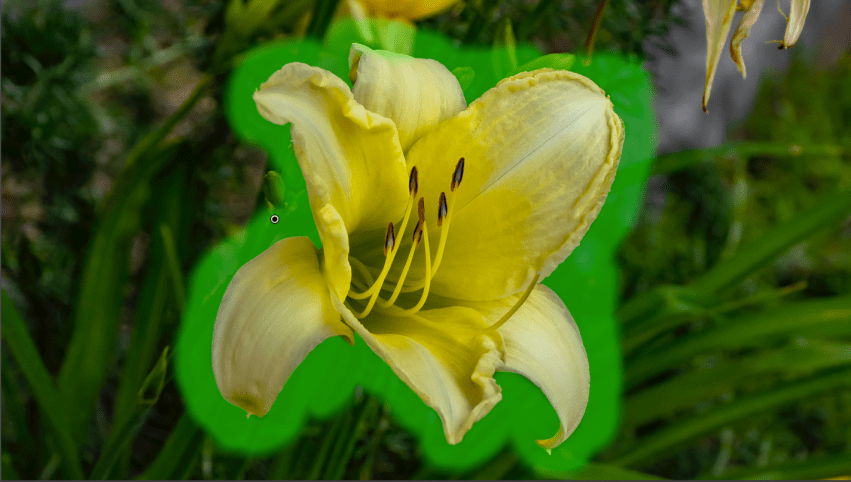
… which will change all brushed areas in the image to their darkest possible values, with saturation and noise set as shown to blur and soften any blips of light or color that still want to peek through the darkened background elements. After completing a “first draft” on a set of photos — adjusting exposure and colors, removing spots, and sometimes cropping — I use a Lightroom brush to outline around the edges of the subject like this:

The outline brush is feathered — as you can see above from the soft edges of the fluorescent green masking — since the shape of the subject varies throughout and its boundaries consist of curved lines and contours. Think of this like painting a wall where there is floor molding of a different color: one of the first things you might do is pick a small brush of suitable size (and bristle density) to paint a thin line of the wall color just above the molding. If you use a brush that’s too large, you’ll likely slop paint onto the molding you’re trying to protect, and have to remove it. If I zoom into a section of the photo I’m working on, you can see something similar near the top of the bloom…

… where the green mask covers part of the petal. I remove that with Lightroom’s Erase brush, and zoom in along all the edges of the flower to remove the mask from any other areas where it’s bled onto the subject.

I then use the same sized brush but without feathering to outline the subject one more time…

… and finally use a larger brush — also without feathering — to paint the rest of the background, effectively converting it to all-black. Turning off the feathering for these last two steps is like using a wider paintbrush in our wall-painting metaphor: you can cover a larger area quickly with more paint and fewer strokes (or mouse movements!).

Here’s the transition through the three steps, first with the mask showing and then with the mask turned off. Turning the mask off and on repeatedly as I apply it lets me see my progress and make sure that I’ve covered everything behind the flower.

The most time-consuming part of this workflow is the first step — outlining the subject with the feathered brush — so I tackle that right off the bat and then finish the rest of the background like a guy slinging finger-paint on poster paper. I’ve experimented a little with doing the same thing in Photoshop instead of Lightroom; and while it’s sometimes easier to mask the subject then flip the background black in Photoshop — the most detailed masking in Photoshop or Lightroom seem to require about the same amount of effort. So I stick with Lightroom, and don’t have to add Photoshop to my workflow to get these results.

With all this in mind, I altered how I took the photos for this series of posts to allow for what I’ve learned about making it easier and more accurate to convert their backgrounds to all-black. Selecting and masking around the subject works best when it’s as in-focus as possible, with good contrast and sharpness between the foreground and background. Since the amount of light and color that reaches the camera’s sensor is determined by a combination of aperture, shutter speed, and ISO settings — the exposure triangle — I wanted to figure out if different exposure settings would improve my ability to remove the backgrounds.

So I started with an assumption that a higher ISO setting would give me more flexibility in choosing shutter speed and aperture, and experimented with ISOs in the range of 800 to 3200 to see what worked best. ISO 3200 introduced a bit too much grain into the photos; and while I could remove a lot of it in Lightroom, the images ended out softer than I wanted with porous edges around the subject that were difficult to mask. ISO 800 or 1600 provided a good balance between sharpness and grain, so I took about half of the photos at ISO 800 and half at ISO 1600. Either setting gave me what I wanted: a few extra stops of available light with an aperture setting that increased depth of field so that the flower blossoms were well-focused from front to back. Shutter speed settings didn’t matter that much; I only needed a high enough shutter speed to eliminate camera shake and stop the flowers from dancing in a light summer breeze. Any shutter speed greater than 100 worked good enough.

I took all of the photos with the same lens — a Sony 18-250mm zoom lens — whose great advantage is that (though it’s not technically a macro lens) I can get as close as 18 inches from a subject, and get decent focus even when zoomed to 250 millimeters. This lens works well at Oakland cemetery’s gardens since many of the planted areas are set two or three feet above ground level, or the flowers are blooming where I can’t get close enough to use a macro lens. Finally, since I was going to remove the backgrounds anyway, I could take the photographs from different angles, and could disregard random plants, trees, sticks, or stones that might distract from the subject.

There will be about 100 photos in this project, which is why this post is “1 of 10”. Over the past few weeks, I’ve tried to take a few pictures of ever lily variety I could find at the gardens and ended out with photos of a couple dozen different kinds — colors ranging from yellow to orange, pink to red, and magenta to purple. As I overheard someone telling her friends as they passed me hunched over a batch of lilies: “There’s so many flowers here! It’s like going to the botanical garden, but it’s free!”

๐Ÿ™‚

If you read this far: bless you! Below are the first ten photos; more soon!


A Profusion of Irises: Backlit Blooms

From Photographing Flowers: Exploring Macro Worlds by Harold Davis:

“If you can see a flower, it is a source of light. With flowers, this visible light originates elsewhere — with the sun or an artificial light source — and is reflected by the flower…. [Many] flowers also emit electromagnetic waves on frequencies that humans cannot perceive as part of the flower’s strategy for attracting pollinators.

“When we look at a flower, the light sources that illuminate the flower and the interaction of the flower with this light visually sculpt the flower as well as establish the perceptual basis for the extraordinary range of colors in many flowers. As a photographer, light is the medium that I use for capturing flowers, so I like to categorize the issues surrounding light when I am pre-visualizing a flower photo. I think about light direction, intensity, warmth or coolness. The truth is that the quality of light and lighting involves many variables, and is always subjective and elusive. 

“Light direction means the primary direction of the light as it hits the flower. Photos that show flowers as they are ordinarily perceived such as in a plant catalog will likely use front lighting. Side lighting with flowers is a little less usual, and often works well if you are interested in shadows or strong contrasts between lights and darks. 

“I am a big fan of backlighting flowers, because it helps to emphasize transparency of the petals.”

I like backlighting too!

While it’s always interesting to see how cloudy days can soften shadows on outdoor photo subjects, it’s just as much fun to find strategies for getting good shots in full sun — like the backlit (or in a couple of cases, “sidelit”) irises below from one of my trips to Oakland Cemetery. There are some challenges to shooting backlit subjects, not the least of which is: the sun is in your eyes! And since I usually wear my summer disguise — ๐Ÿ˜Ž — on bright days, the world through the camera’s viewfinder can be apocalyptically dark. So I’ve learned to rely on the camera’s clues: the little green box that flashes to the tune of a tiny beep when focus is achieved, the camera’s interpretation of correct exposure, and the histogram … supplemented with a few mystical guesses at the right settings for decent depth-of-field. Using the camera’s burst mode helps also, to increase the chances of getting a fully focused shot if the flower starts bouncing around in a breeze just as I mash the shutter-button. Which is what the flower usually does.

Most of these photos looked pretty lousy when I first imported them into Lightroom — as even with the best camera settings I could come up with, there were still many areas rendered too brightly, or with the background and subject blurred together because of the amount of light on both. From the batch below, here’s one example: a before image showing that the exposure settings I needed to get good color and detail for the flower made the background so bright that it draws your eye right away from the purple bloom.

When I came upon this flower, I thought it had been planted among some spider lilies or yucca — plants that often have long, bi-color leaves — then realized these were leaves of this iris variety, one of the few kinds that doesn’t have single-colored green leaves (see Dalmation Iris). Quite striking, they were, especially in a large patch of the garden, so I wanted to keep the background in a couple of photos since this variety was so unusual.

My goal for this image, then, was to reverse the effect of the bright light by muting the background and lighting up the flower. Since there’s a ton of color and detail in a photo’s RAW file, I was able to use Lightroom’s graduated filters to reduce the background highlights multiple times, then brush some increased exposure, brightness, and lighter shadows on the flower’s petals. The result ended out a lot like it looked in real life: the reflected yellow light from the surrounding leaves gives the impression that the flower is lit from behind.

Select the first image below if you would like to see before and after versions.


Here are the rest. Select any image to see larger versions; then choose “View full size” for a closer look at the color and detail.


The previous posts in this series are:

A Profusion of Irises: Sun-Kissed Shades of Orange

A Profusion of Irises: White Blooms on Black Backgrounds

A Profusion of Irises: Black (Iris) Friday!

A Profusion of Irises: Iris No. 1

Thanks for taking a look! ๐Ÿ™‚